ClickUp Time Tracker round up to intervals of 5/15/30 minutes, etc.
Jan 23, 2026
ClickUp’s project management has a direct ClickUp Time Tracker integrated and can be accessed quickly. However, many service providers, e.g. in the IT, marketing (like our SEO Agency from St. Gallen) or law firm sectors, do not bill their time directly according to the actual time incurred, accurate to the second, but round up the times, e.g. in 15-minute increments.
There are many reasons for this. In particular, for very short tasks that only take a few minutes and are completed directly for the customer, billing to the second does not do justice to the service provider. For example, they are torn away from other tasks, have to think their way into the new task and then find their way back to the original task. In this case, rounding up to 15 minutes, for example, makes perfect sense.
Unfortunately, it has not been made available yet.
For this reason, I tried to find a way to efficiently integrate the function using ClickUp’s built-in API tools. I used the automation platform make.com to help me and was ultimately able to implement the function to my satisfaction.
Below, I would like to provide a brief guide on how I was able to implement the whole thing.
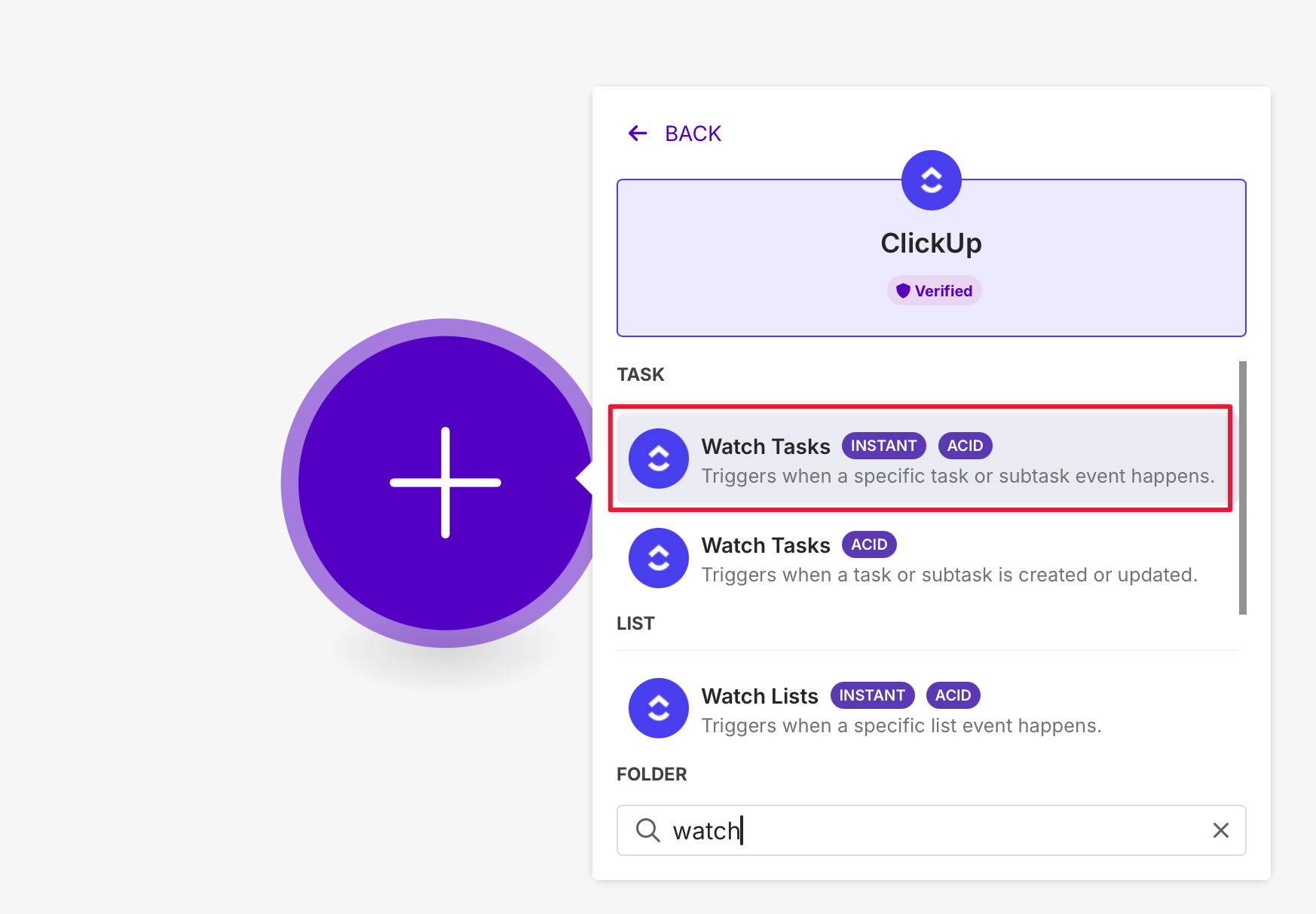
Start with a ClickUp event. To do this, select the «ClickUp» category.
Select the trigger «Watch Tasks»
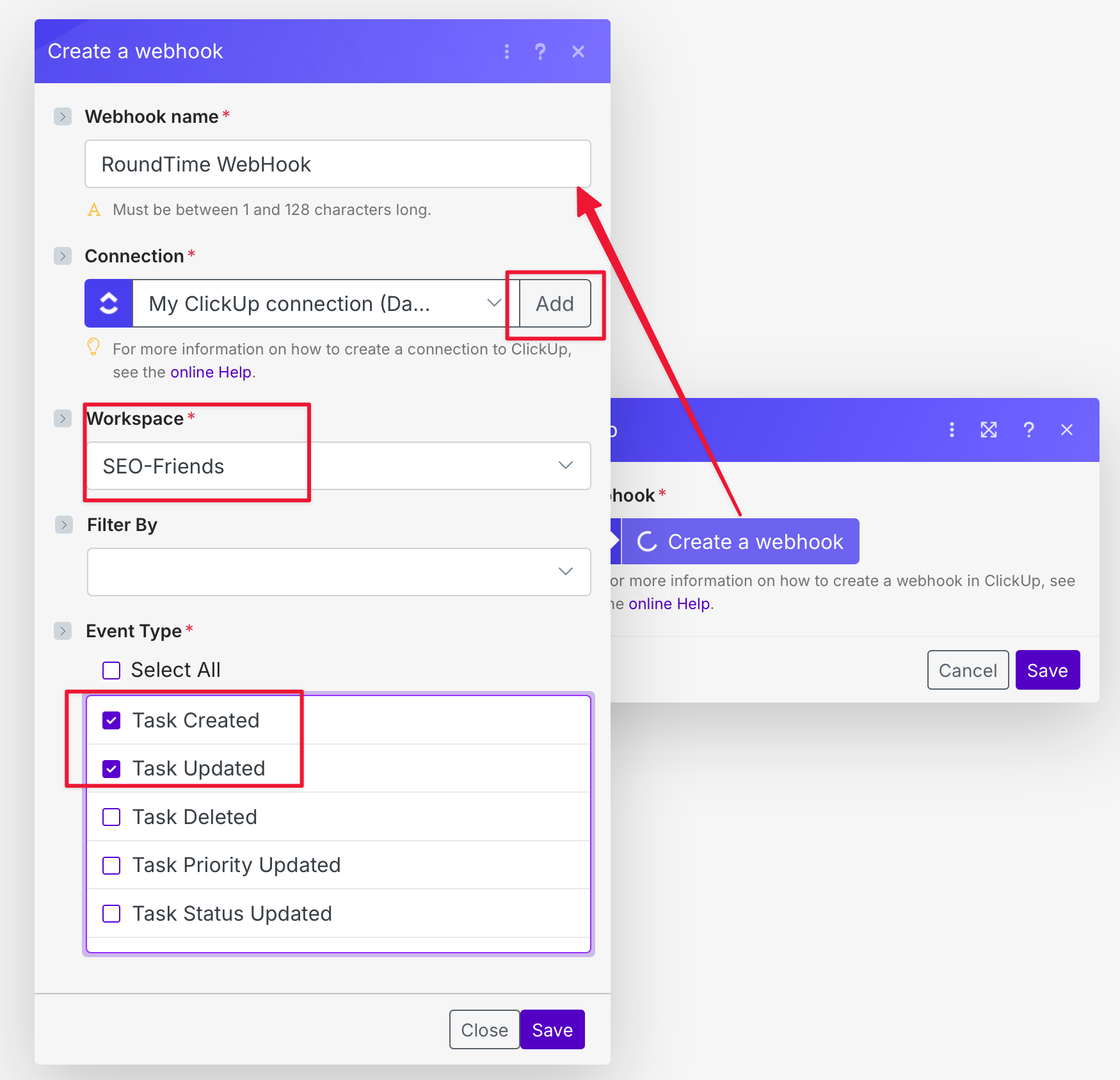
Click on «Create a webhook» and set up the webhook as shown in the screenshot below. Click on «Add» under «Connection» and connect your ClickUp account to make.com.
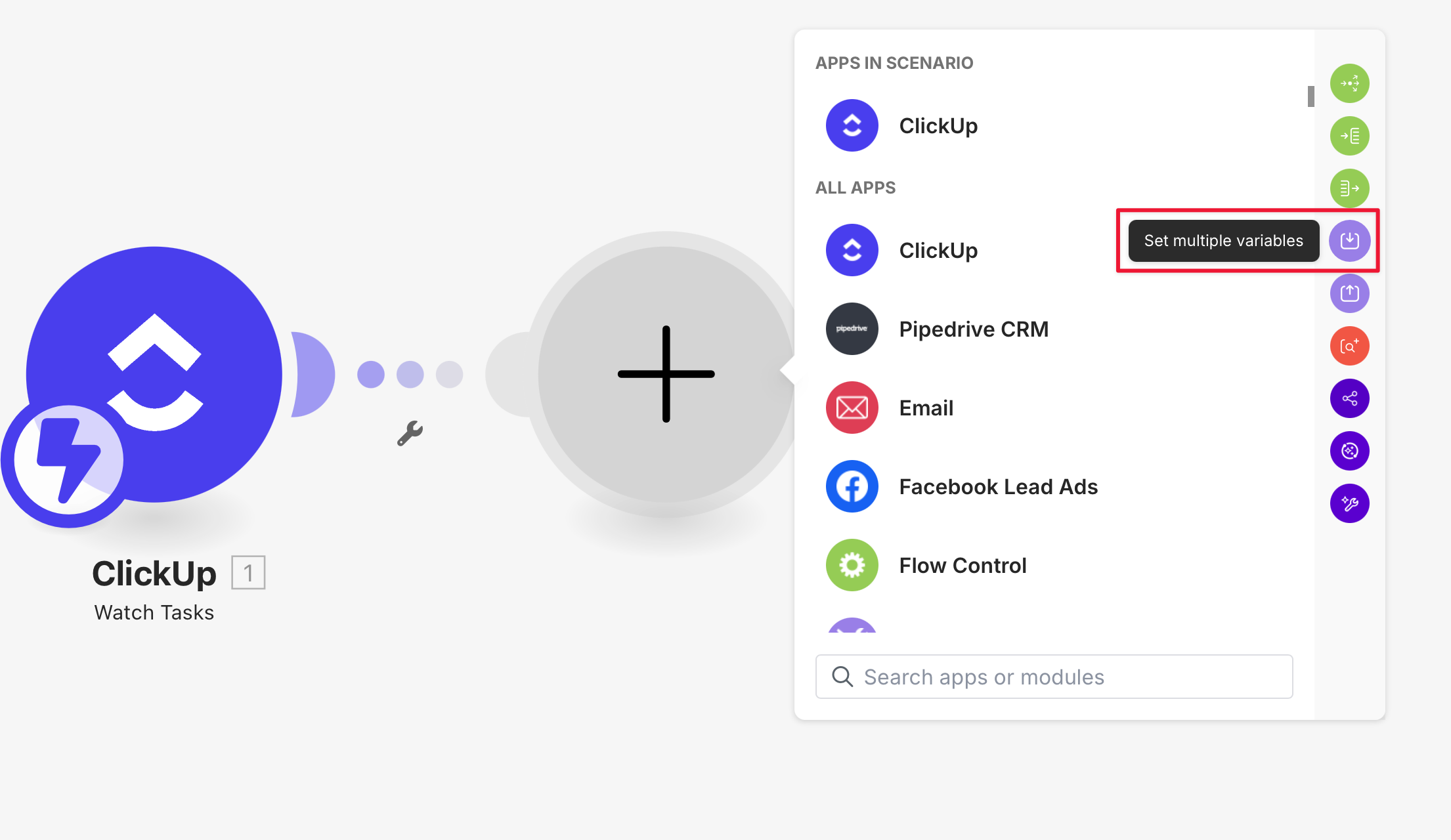
Click on «+ Add another module» and select «Set multiple variables»
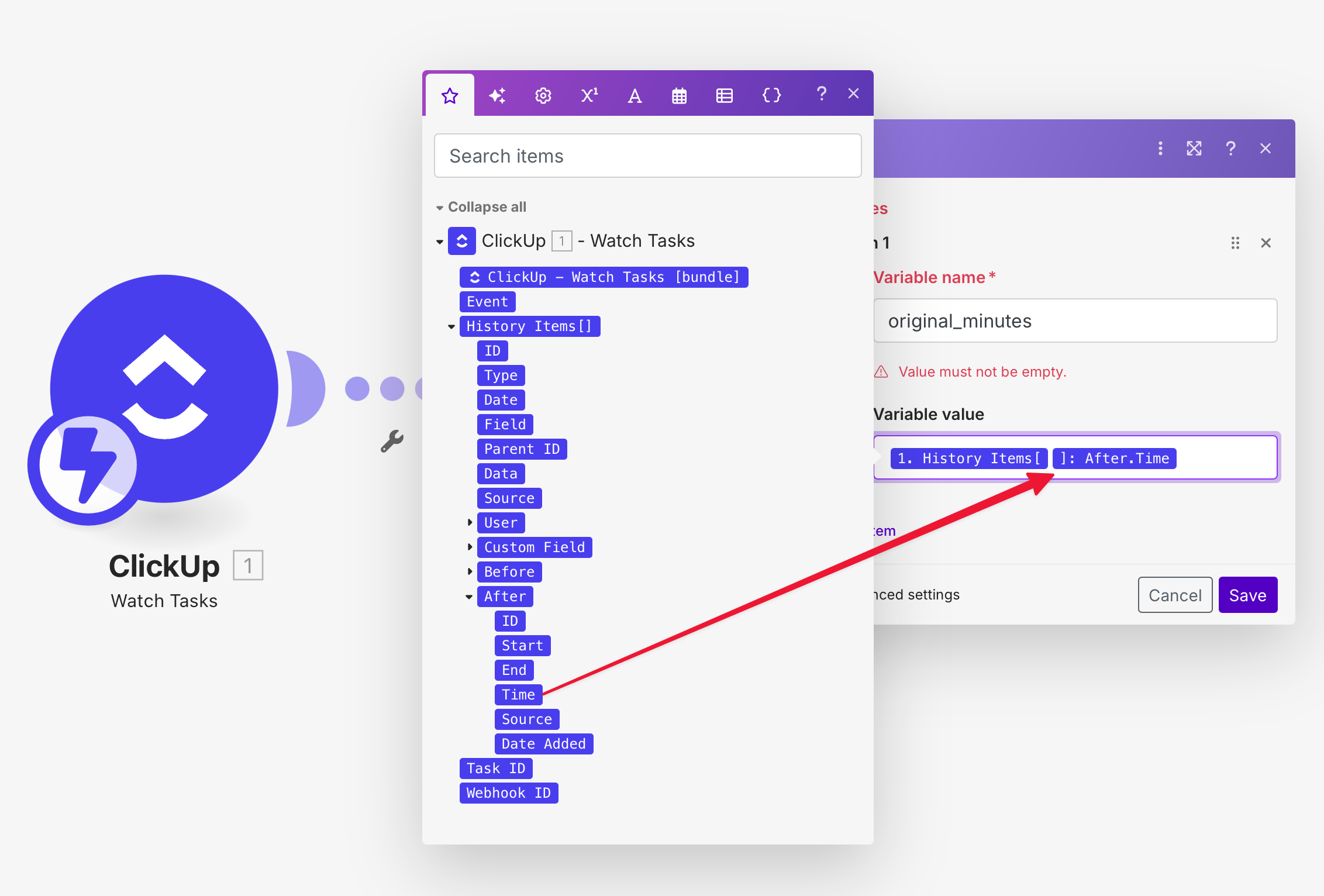
Enter the following information: Variable name: original_minutes Variable value: Drag the variable «Time» into the input field.
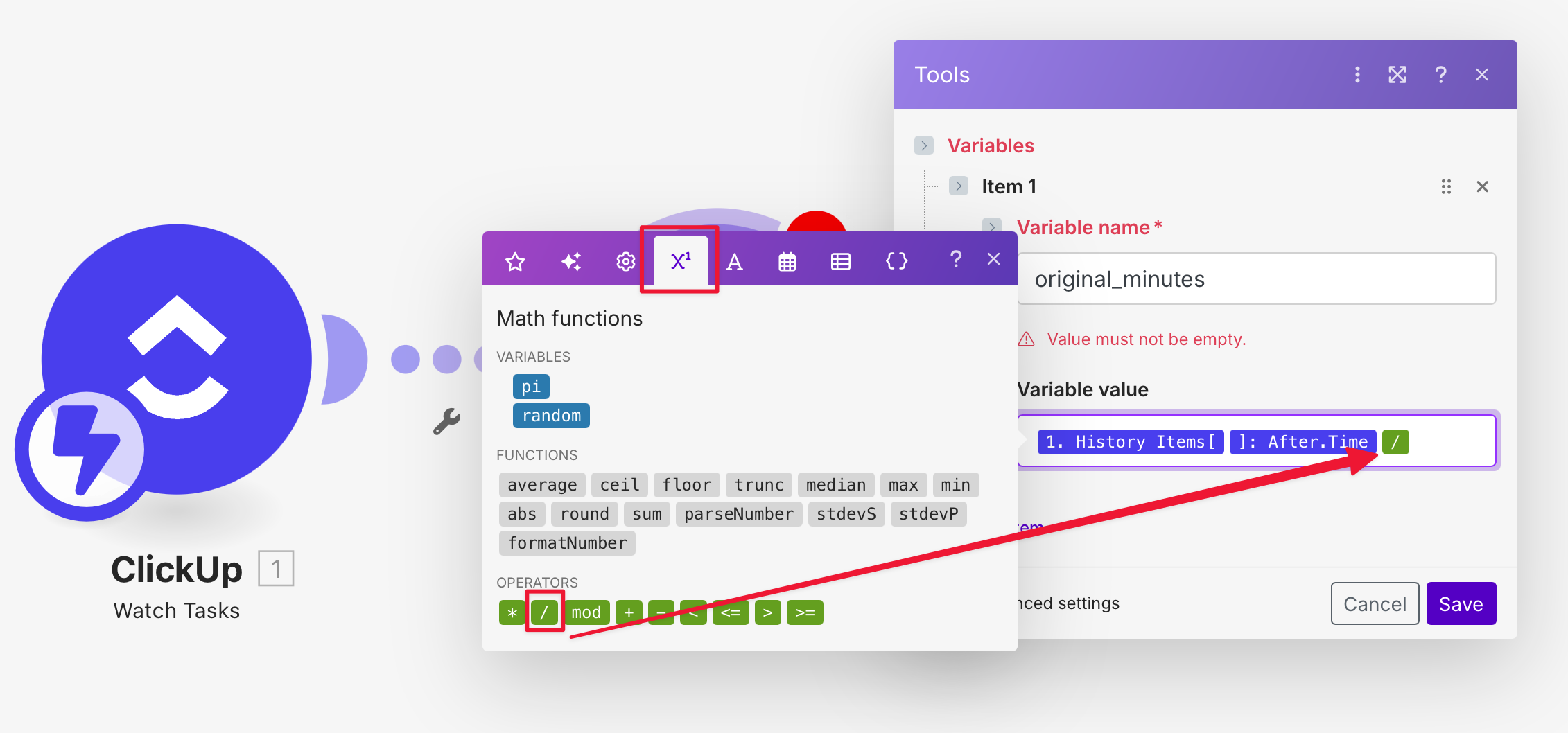
Extend the whole thing with a mathematical formula. We need to convert the amount we receive from ClickUp in milliseconds into minutes. Switch to the mathematical formula tab in the variable pop-up. Drag the «/» symbol on the right into the input field.
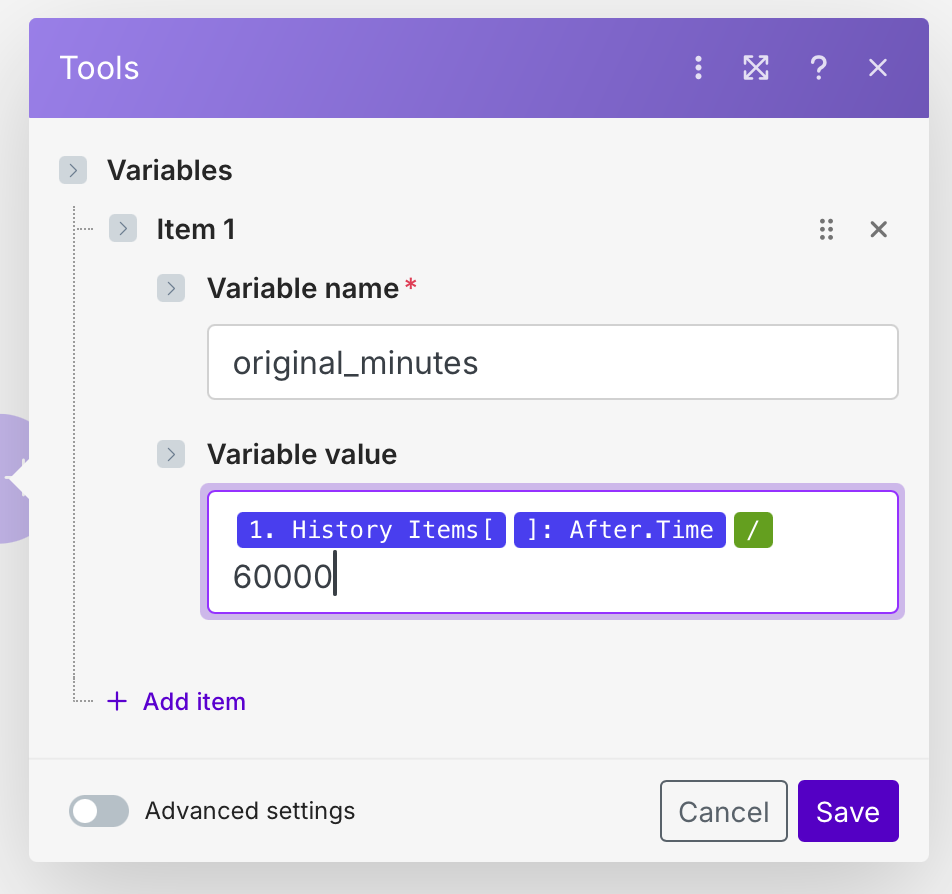
To complete this step, enter the number «60000» after the «/» symbol to convert to minutes.
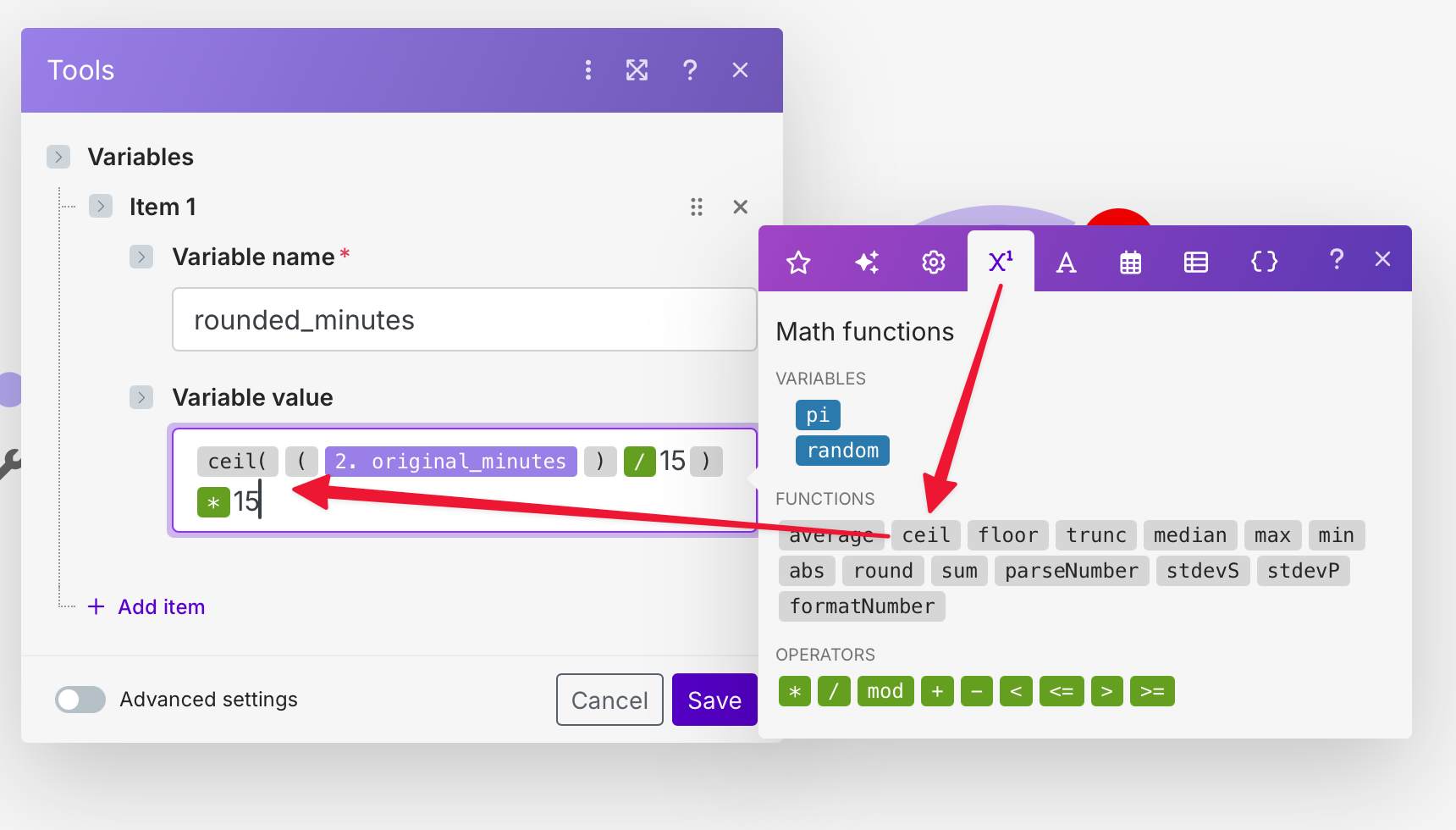
We now need to repeat steps 7-10 twice to set two more variables: rounded_minutes – Here we calculate the next level in our 15-minute interval. For example, we round from 8 minutes to 15 minutes and from 23 minutes to 30 minutes. To do this, drag the individual functions from the variable pop-up on the left into the input field. The result should look like the screenshot. The brackets can be found in the «gear» icon, for example. Be sure to use drag and drop to insert the mathematical symbols. I had problems when I tried to enter brackets using the keyboard.
end_time – We need the end time of the time tracking for later storage of our final result. ClickUp expects a start time and an end time. It is not possible to enter the duration in minutes, for example. So let’s add a third step for setting this variable.
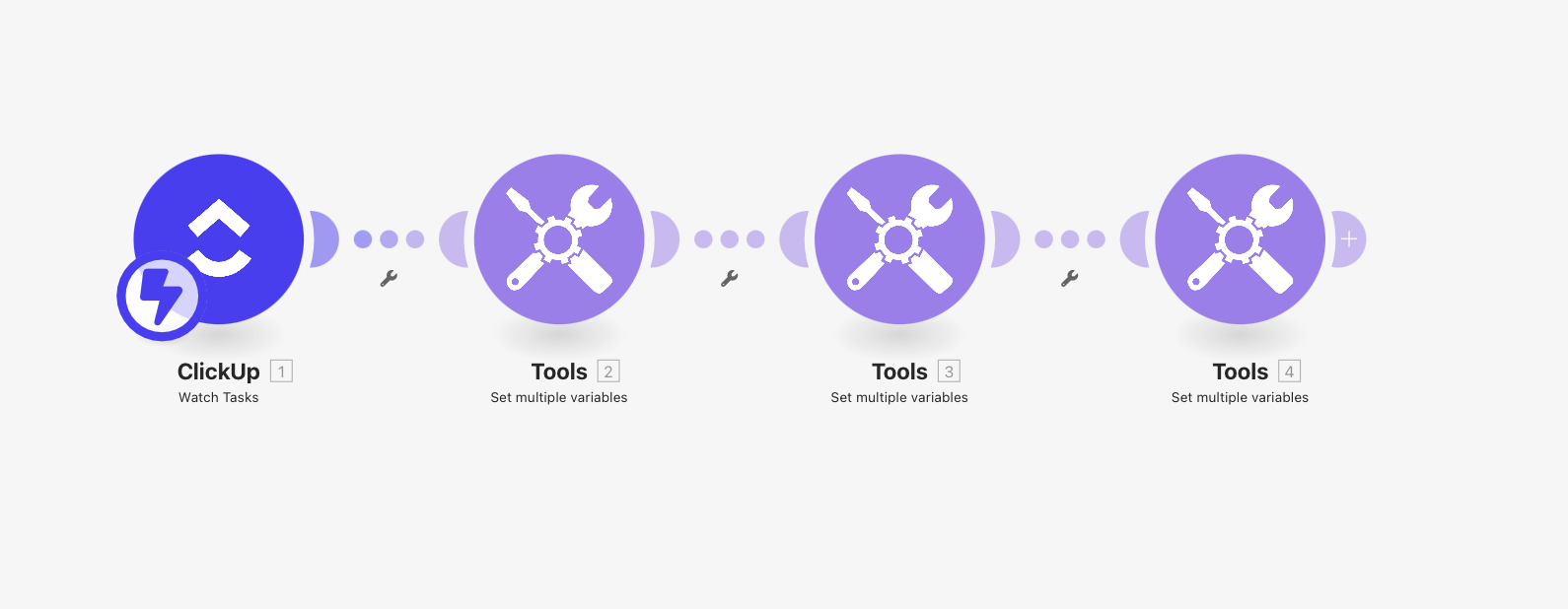
The interim result of our process should now look as follows:
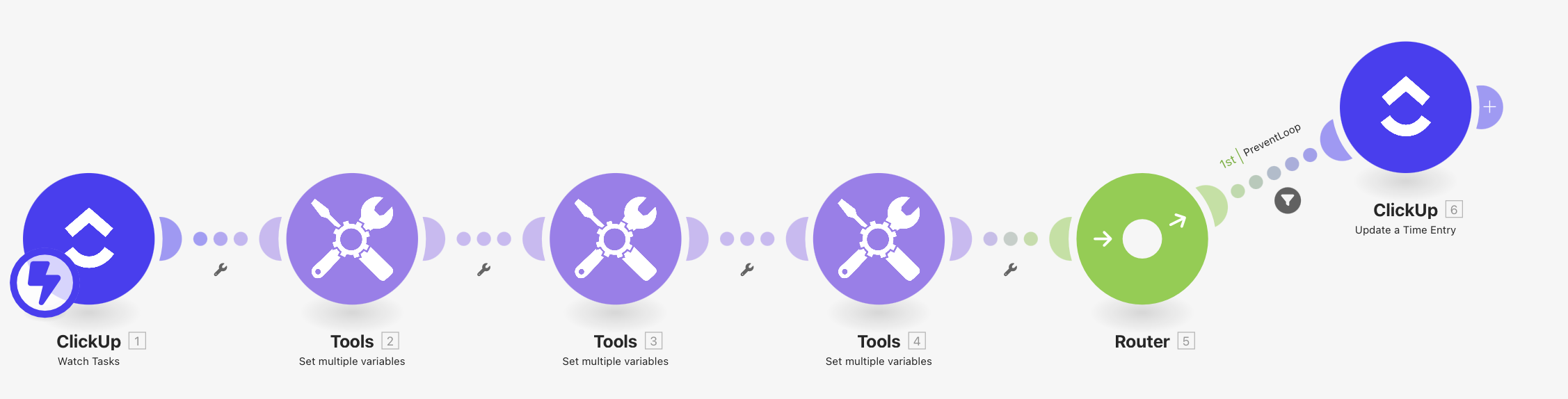
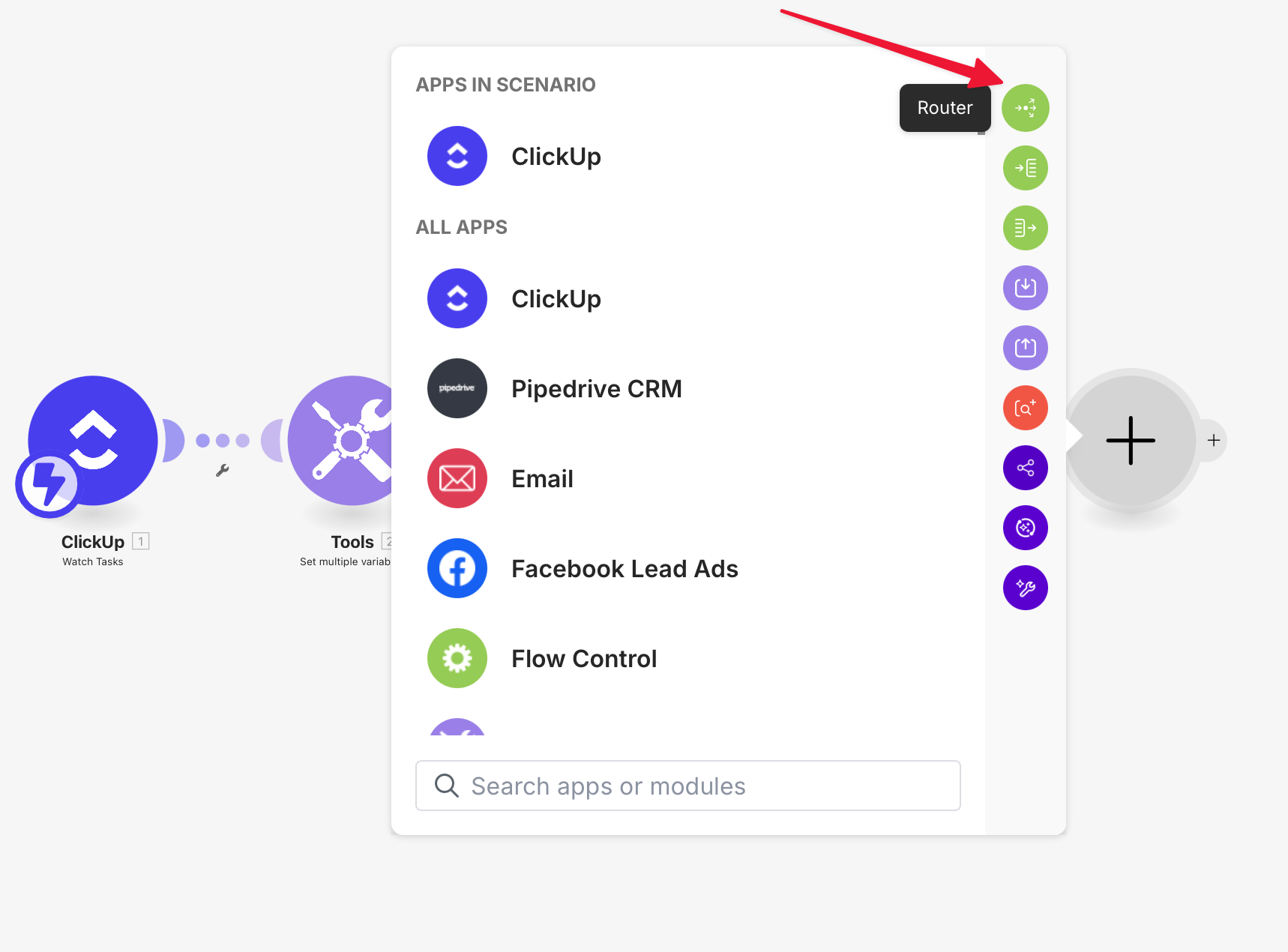
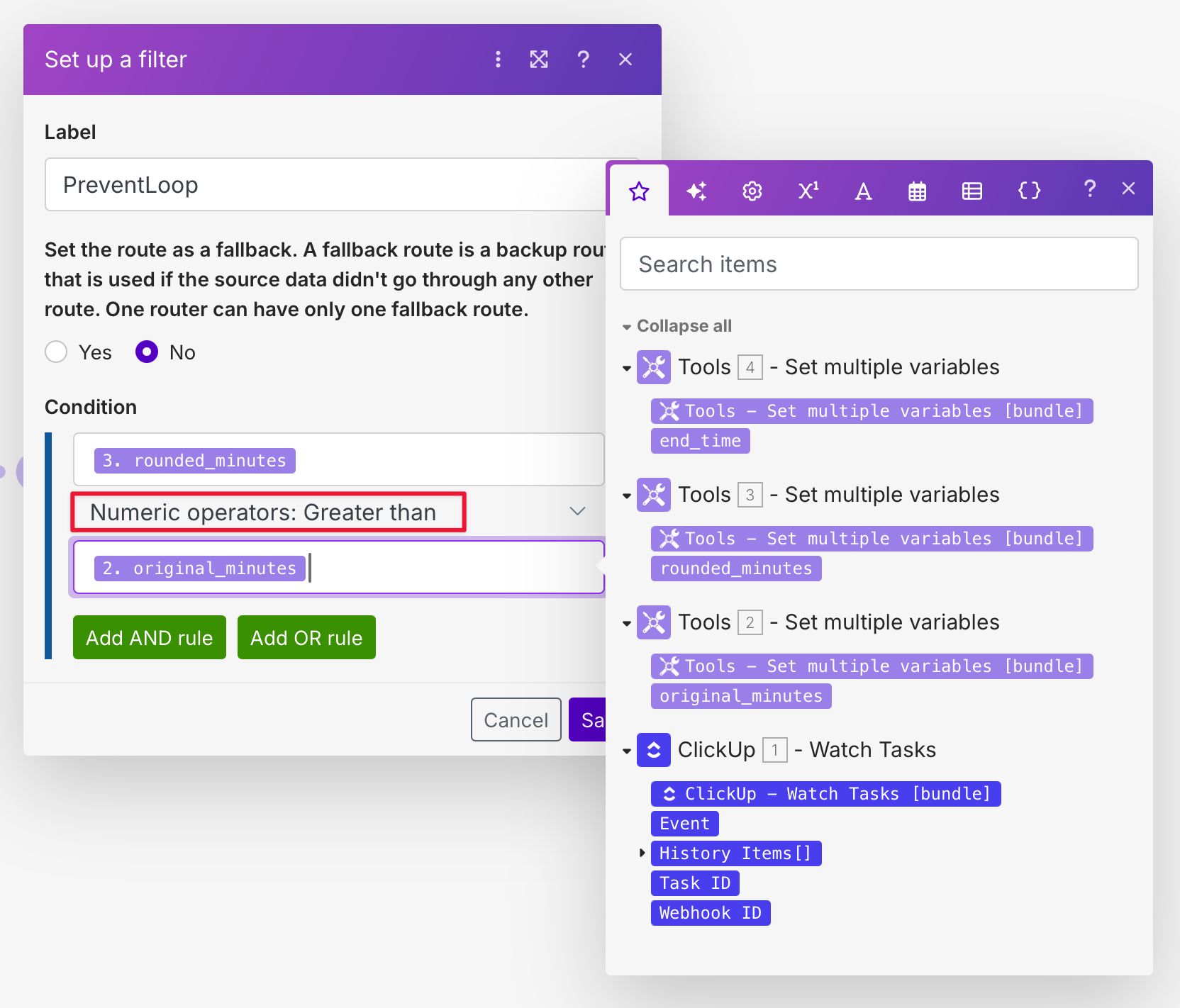
In the penultimate step, we prevent an endless loop. We want to prevent the rounded value from being saved, which would then trigger another update and cause make.com to start the process all over again, repeatedly. To do this, we add a router and create our «PreventLoop» filter, which ensures that our result is only saved if the rounded time is greater than the original time.
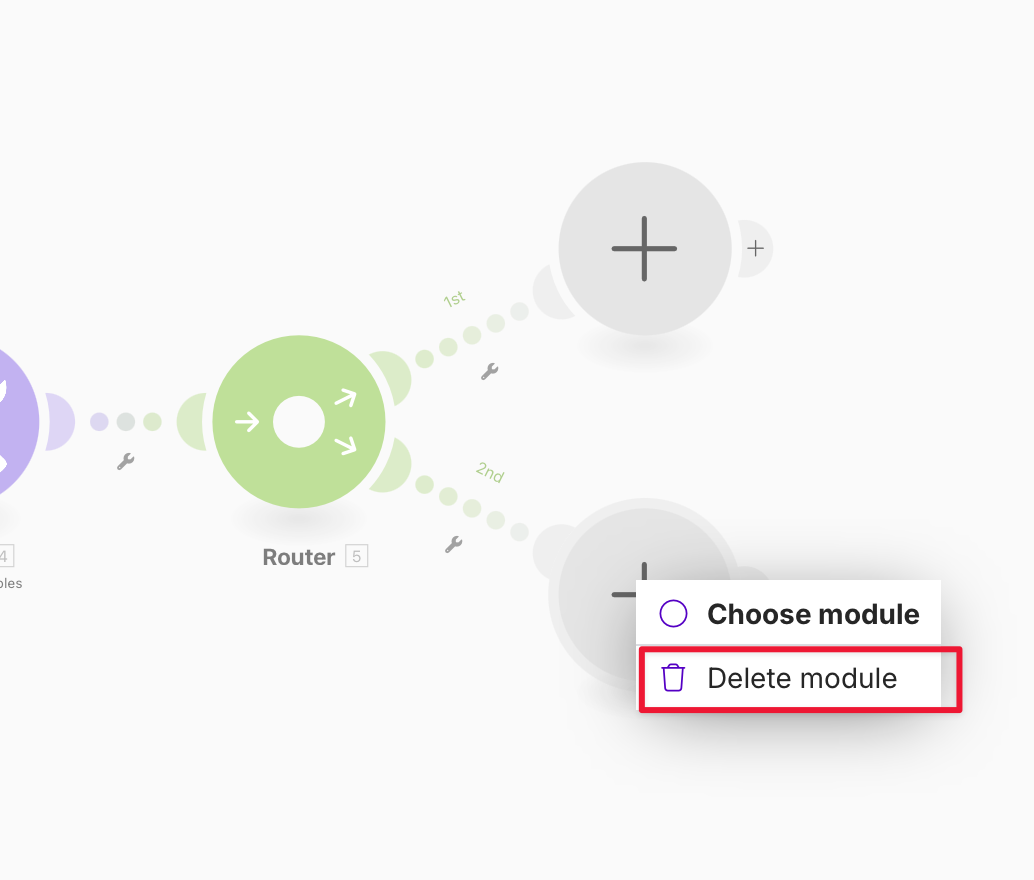
We can delete the lower module with a right-click.
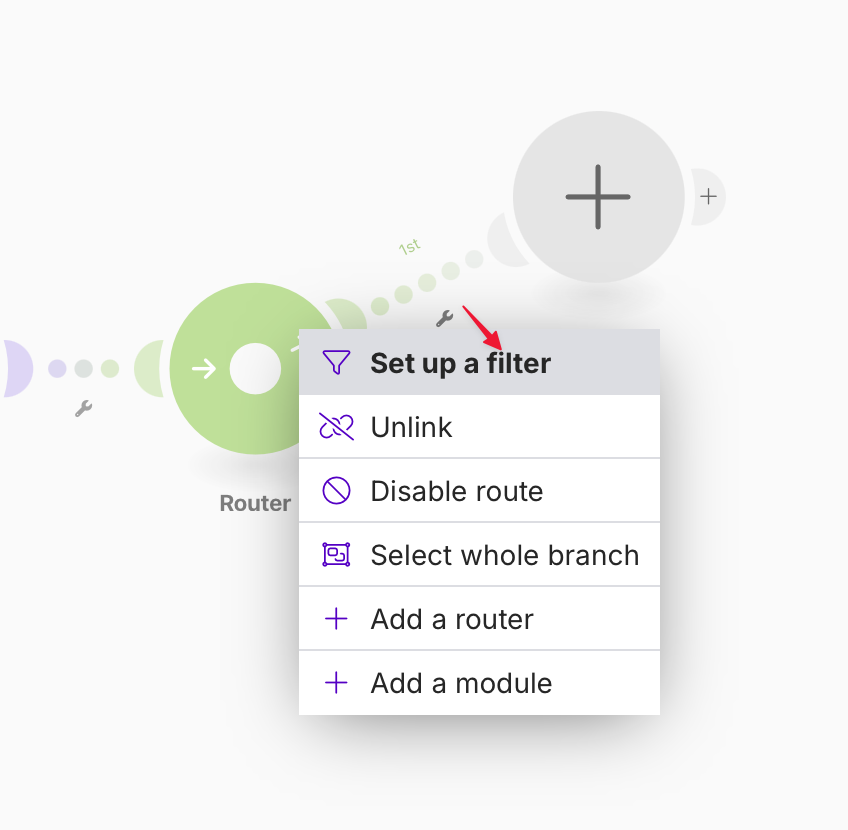
Now we setup the filter.
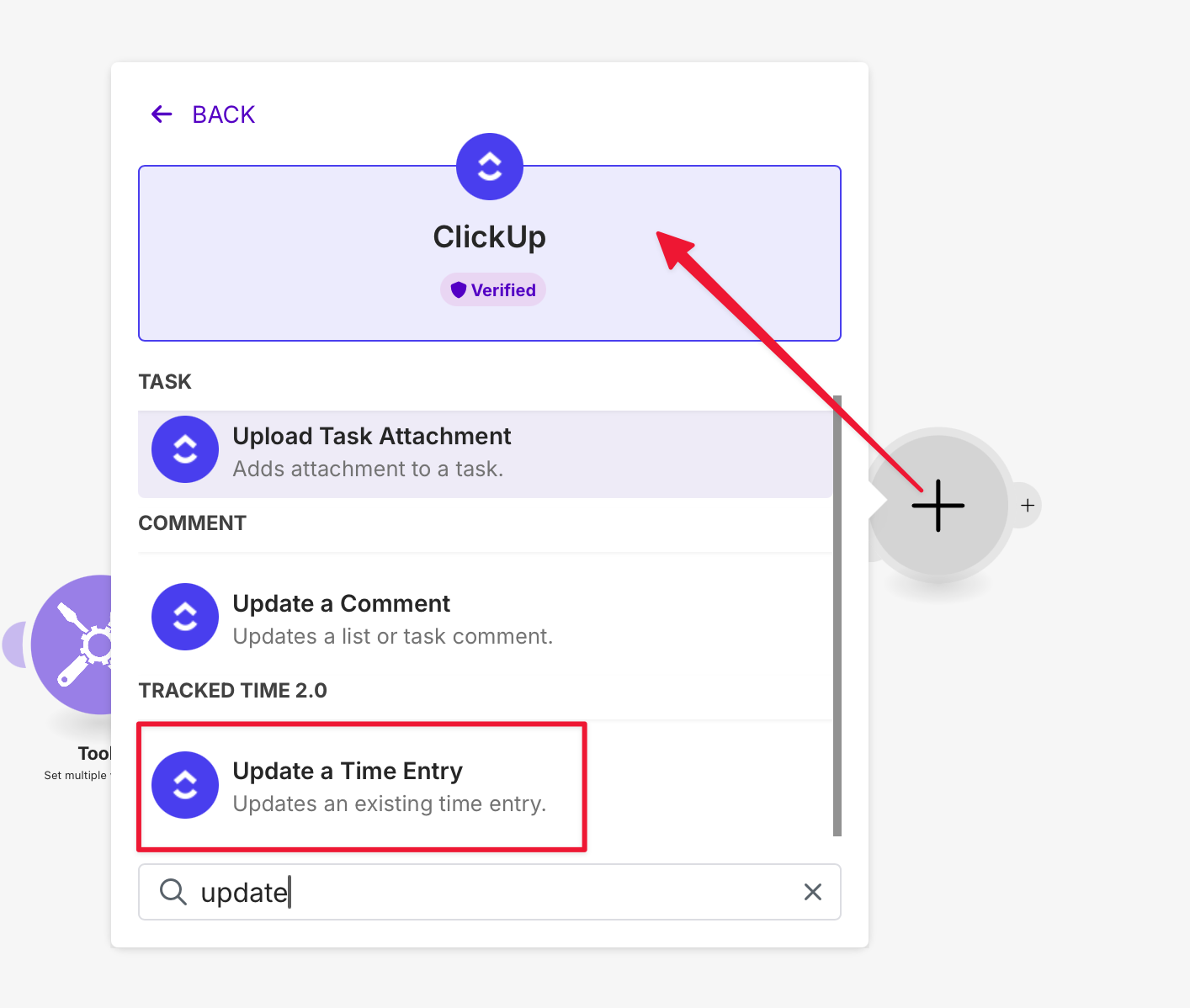
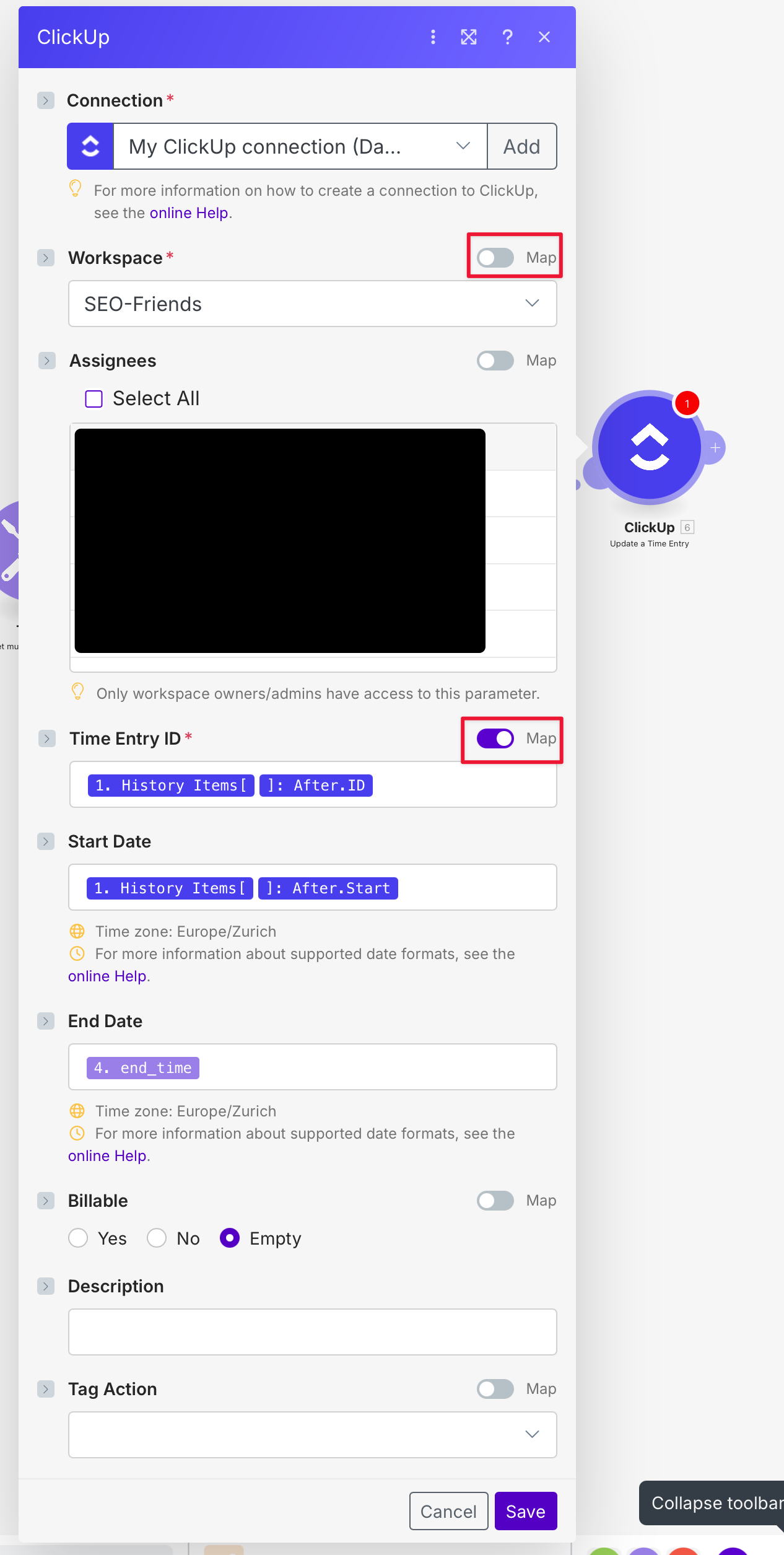
In the final step of the process, we now send our new time value to ClickUp.
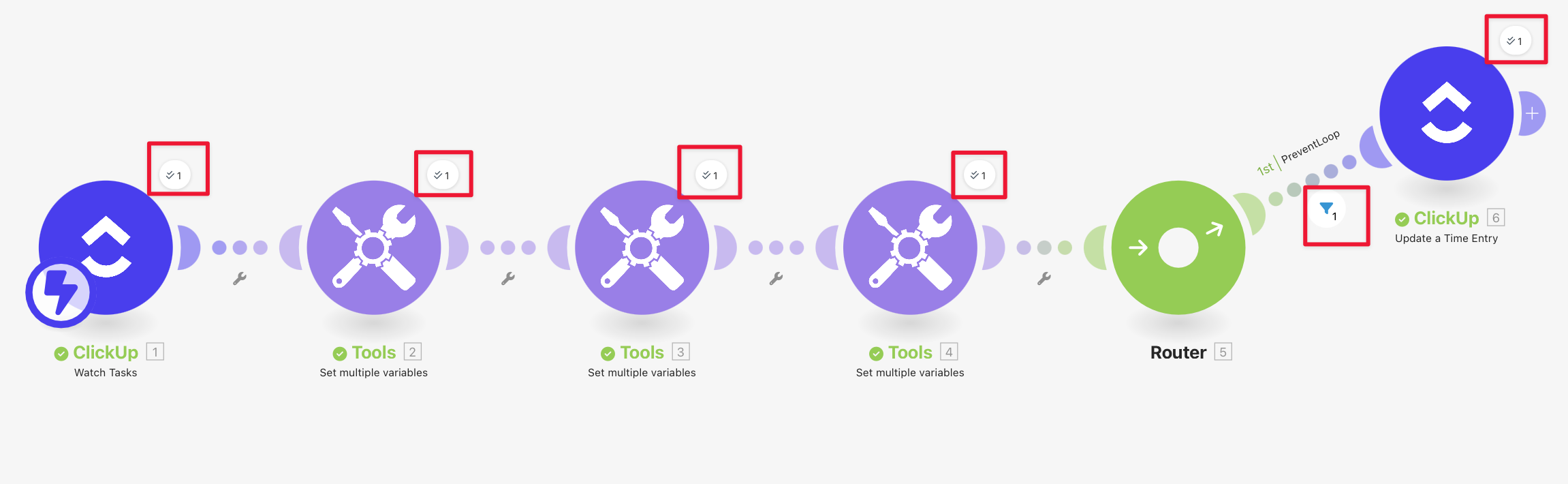
The final process should now look as follows.
Testing the process
Now click on «Run once» at the bottom of the page.
Open ClickUp, start tracking time, and stop it again after a few seconds.
If everything has been set up correctly, you will now see the data running through the process module by module in make.com until it successfully arrives at «Update a Time Entry.»